The Steam Deck is a hand held gaming console from Valve. Out of the box, it runs SteamOS, a Linux distribution from Valve. Main application is to run “steam”, a frontend to download and run games, Valve is operating an online store for games. Most of these were written for Windows, but 90% of these run also on the Steam Deck - also thanks to Valves investments into “Proton”, a layer for running Windows code on Linux.
With the Open Source Summit 2025 upcoming, I prepared the Steam Deck for driving the monitor at our booth at the conference. Capturing a few notes here regarding the setup.
Choosing OS, installing
The Steam Deck is x86-64 based, cpu/gpu from AMD. Thanks to Valve, the device has great Linux support, and drivers etc. went all into the upstream code bases. In the past I had run Fedora on the device: while running nicely for basic tasks, I hit these issues together with KDE/Plasma last year:
- keyboard: the Steam Deck has a 1280x720 pixel touch screen. Mouse is emulated on a touch sensitive plate on the steam deck, but for keyboard input one has to rely on a visual keyboard provided by the window manager. With KDE, I think I had auto-login enabled, but later for operation calling up the visual keyboard was tricky.
- multi display setup: the Steam Deck connects via USB-C to a small dock, and from there via HDMI a monitor can be connected. Last year, the booth monitor and the dock just did not get together with a usable configuration.
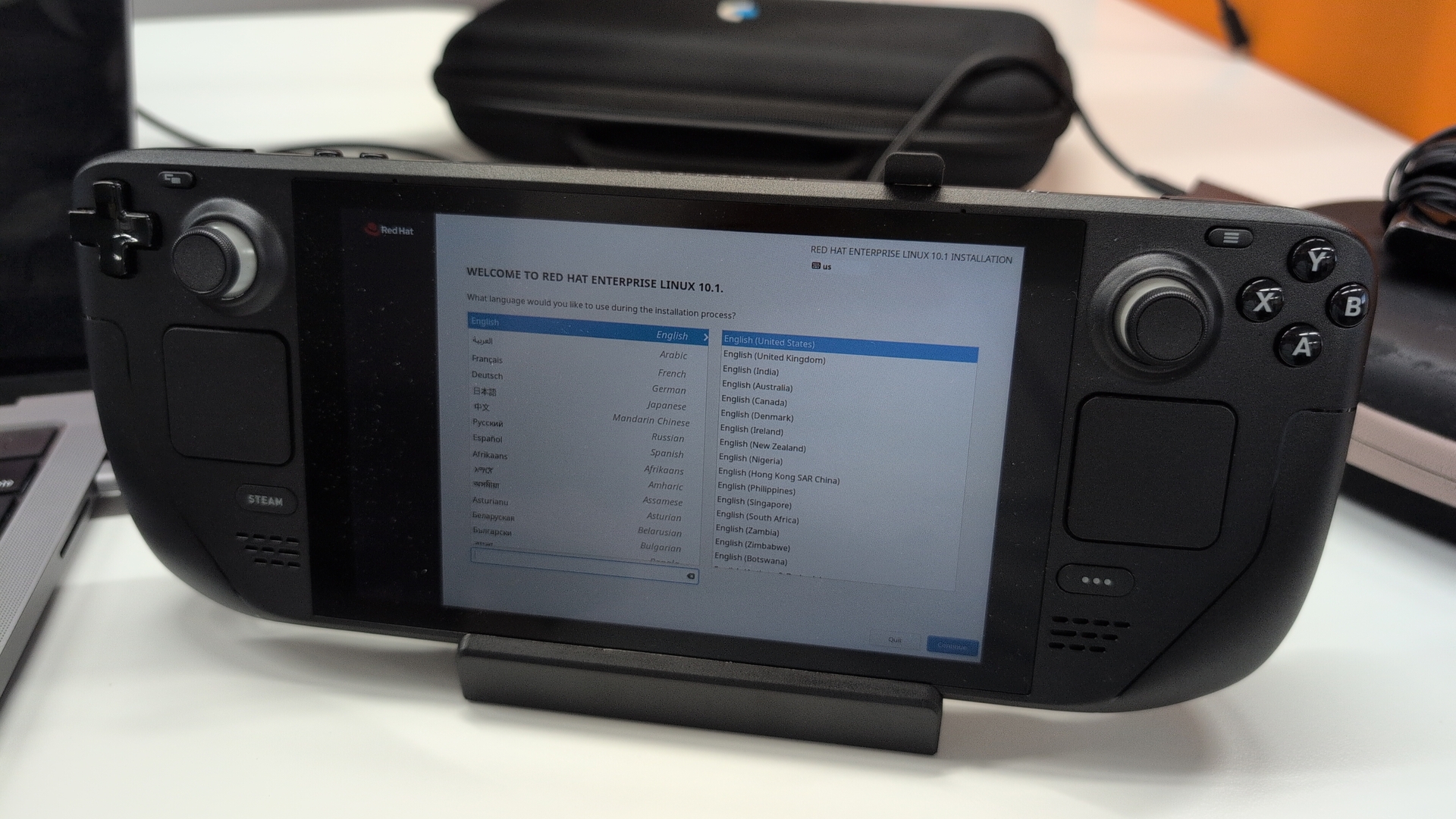
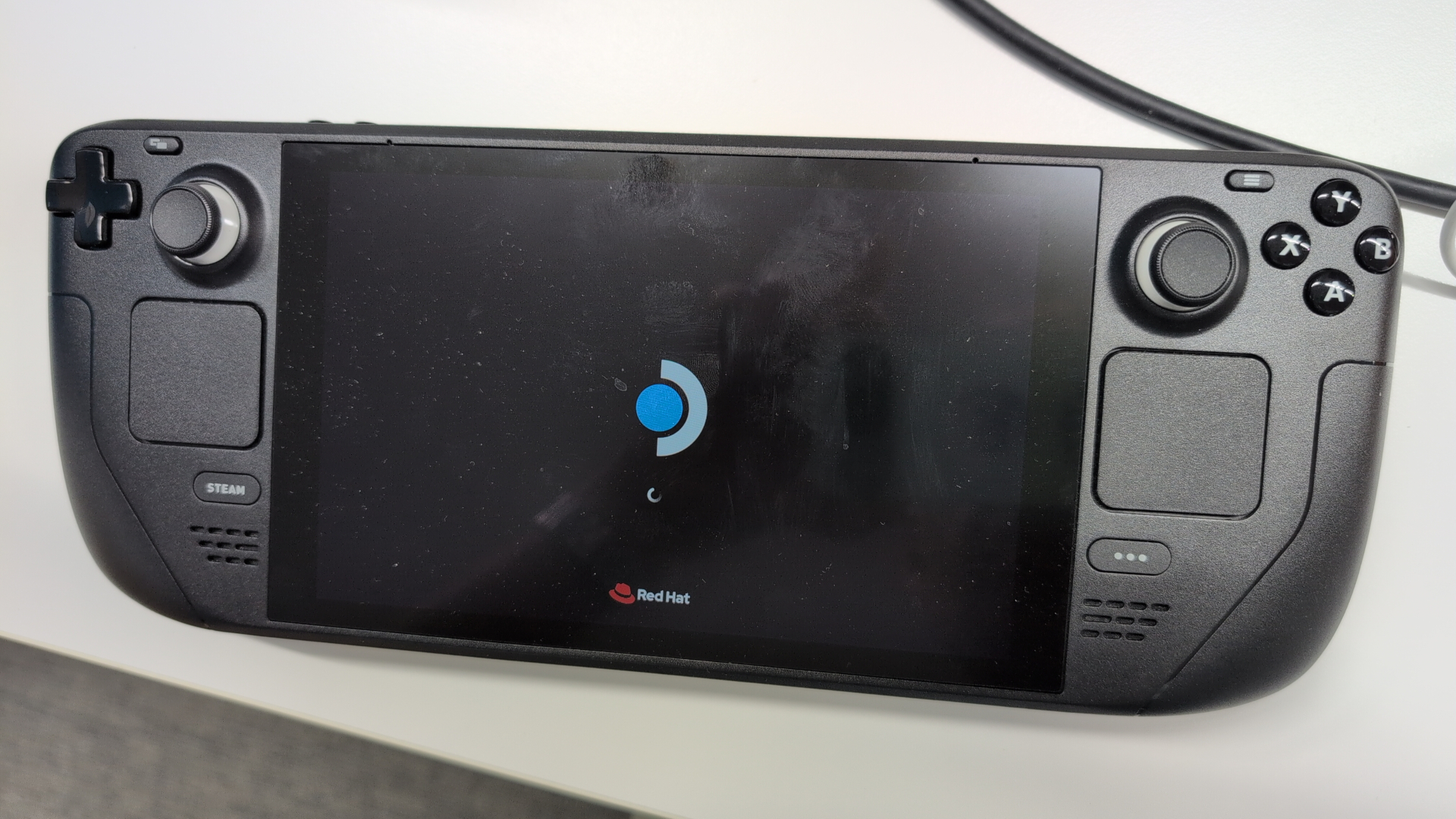
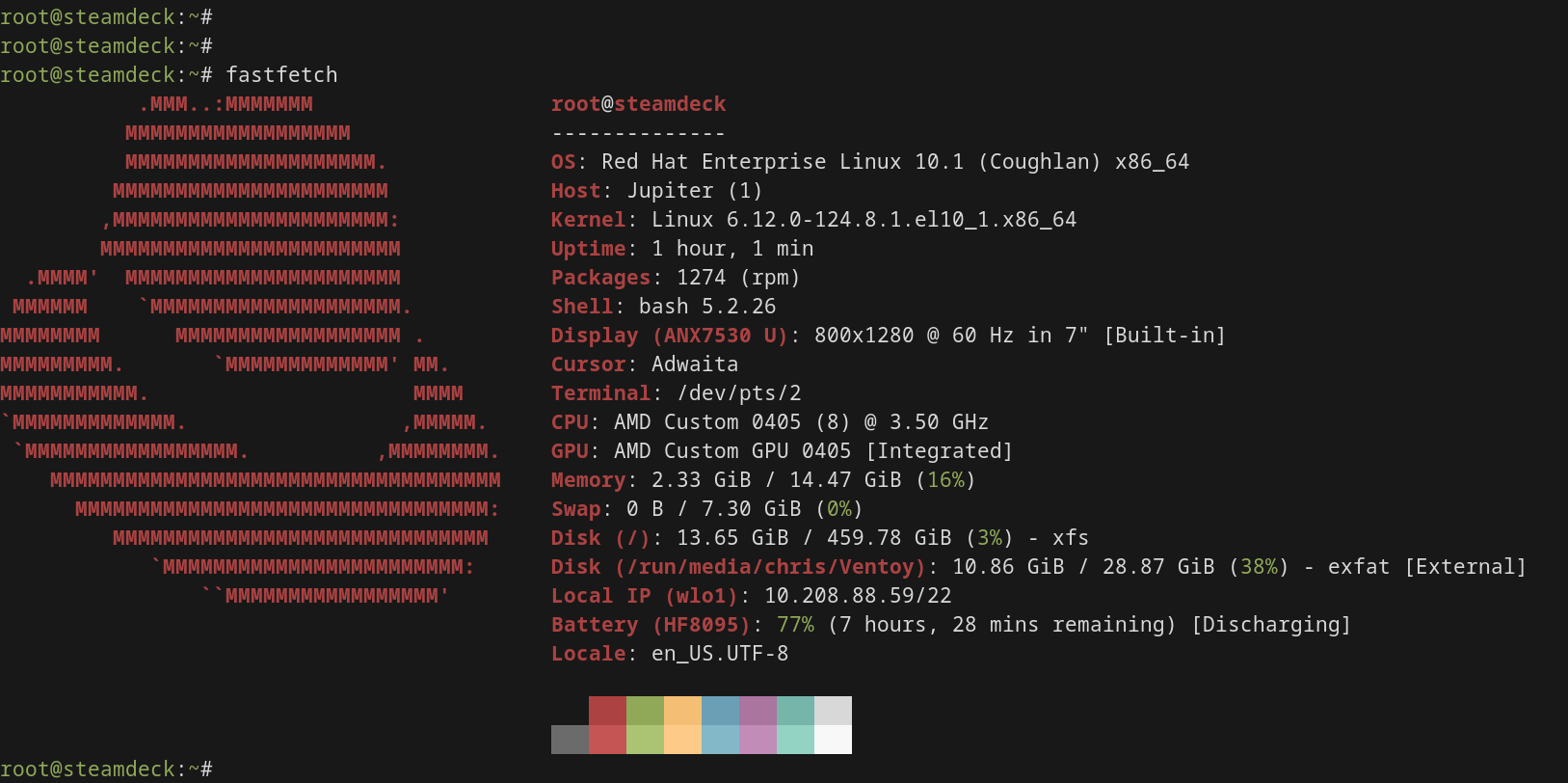
As Red Hat Enterprise Linux (RHEL) 10.1 was just released, I gave that a try - and it works flawlessly for these desktop purposes.
I did not try auto login, but when logging in the user and entering a password, the visual keyboard got available automatically - great! So the only time I needed to connect a USB-keyboard was for the installation. Install: rhel image on a usb-stick with Ventoy. Ventoy creates partitions on the stick, and multiple images can then be stored on a FAT32 partition. When booting, you get to choose between the images. RHEL 10.1 installed just fine. Only mistake on my side: I intended to install on an NVMe enclosure with a 512GB NVMe, connected via USB to the Steam Deck. Later I got the devices wrong, and installed RHEL onto the internal NVMe. Anyway, nothing which can not be fixed later.
Remote access
How to conveniently operate the Steam Deck, when connected to the boooth monitor? Ideally from remote, a different laptop I would bring in. This would be via network.. but when deploying the Steam Deck, it would also not yet know Wifi credentials, so also getting the network connection is a topic. This is my chain:
- First network connection: ethernet. rj45 connected cable, between the dock of the Steam Deck, and the Macbook w/ Asahi Linux, which I brought in. Static IPs configured, so after logging in with a user at the Steam Deck gnome GDM, everything else can be done remotely.
- After booting also the Macbook, remote login via SSH to the Steam Deck is possible. Then both systems can be connected to the Wifi network via “nmcli dev wifi” and “nmcli dev wifi con (bssid) password (pass)”.
- Then, I connected the booth monitor. On the Steam Deck I had activated remote login, so from the Macbook with “remmina” as client, I could access the screen of the Steam Deck.
- After first login, the small internal Steam Deck screen is “primary monitor”. After switching that in gnome settings, and logging in again, I get to see exactly what the booth monitor is showing.
Applications to run
Time for actually showing something!
On the top right, I placed a terminal and did run “bb”, an old but great ASCII-art demo. Get an idea here: BB demo video. BB is really old, and by preferred way to run it is via container with Debian, where it’s still packaged. So after deploying a container with plain Debian, this is how the container gets built:
$ mkdir build-trixie
$ cat >build-trixie/Containerfile<<EOF
FROM docker.io/library/debian:trixie
ENV DEBIAN_FRONTEND noninteractive
RUN apt update && apt upgrade -y && \
	apt install -y sudo systemd procps bb
CMD [ "/lib/systemd/systemd" ]
EOF
$ podman build -t bb build-trixie/
$ podman run --name bb -d \
	--security-opt seccomp=unconfined --hostname bb \
	localhost/bb /lib/systemd/systemd
$ podman exec -it bb bash
container# /usr/games/bb
With parameter “-loop”, it also goes into a continuous loop.
The Steam Deck has capable GPU hardware, and RHEL supports these nicely via Mesa and the kernel. I showed this in the bottom/right area of the screen, in opening https://phoboslab.org/wipeout/ with firefox. This is a WebGL based demo with the data from the Playstation 1 game “Wipeout”. Runs smoothly with the Deck!
At the top left I planned to show slides of the recent Webinar I gave, around topics “RHEL 10 news, AI and bootc”. The slides are of course stored as pdf file. I did not find an easily available pdf slide viewer, so let’s use ImageMagick to convert the slides into single images, and have that shown as slide show:
while :; do
	for i in {0..33}; do
		(loupe page_$i.png & );
		sleep 15;
		killall loupe;
	done;
done
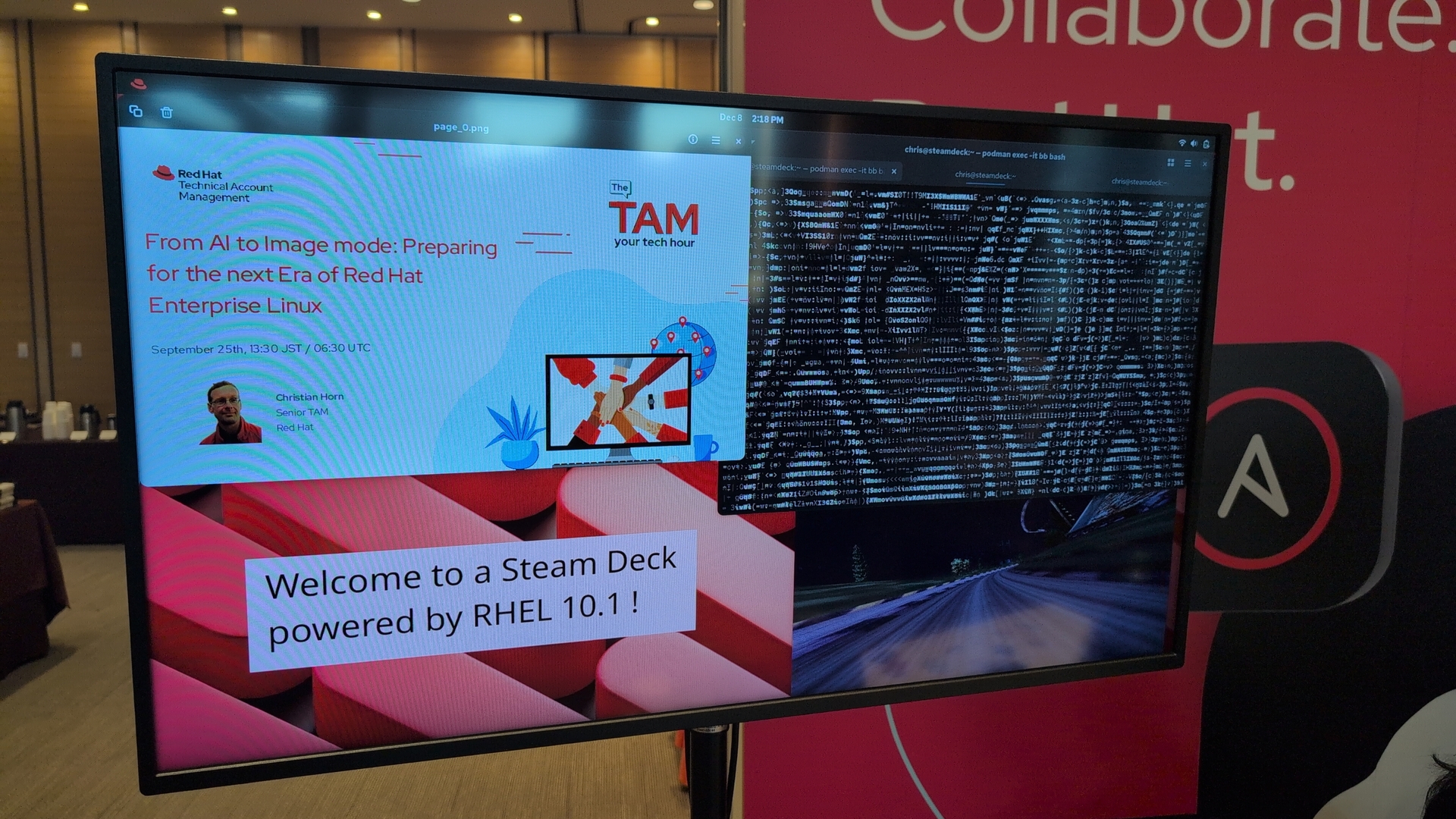
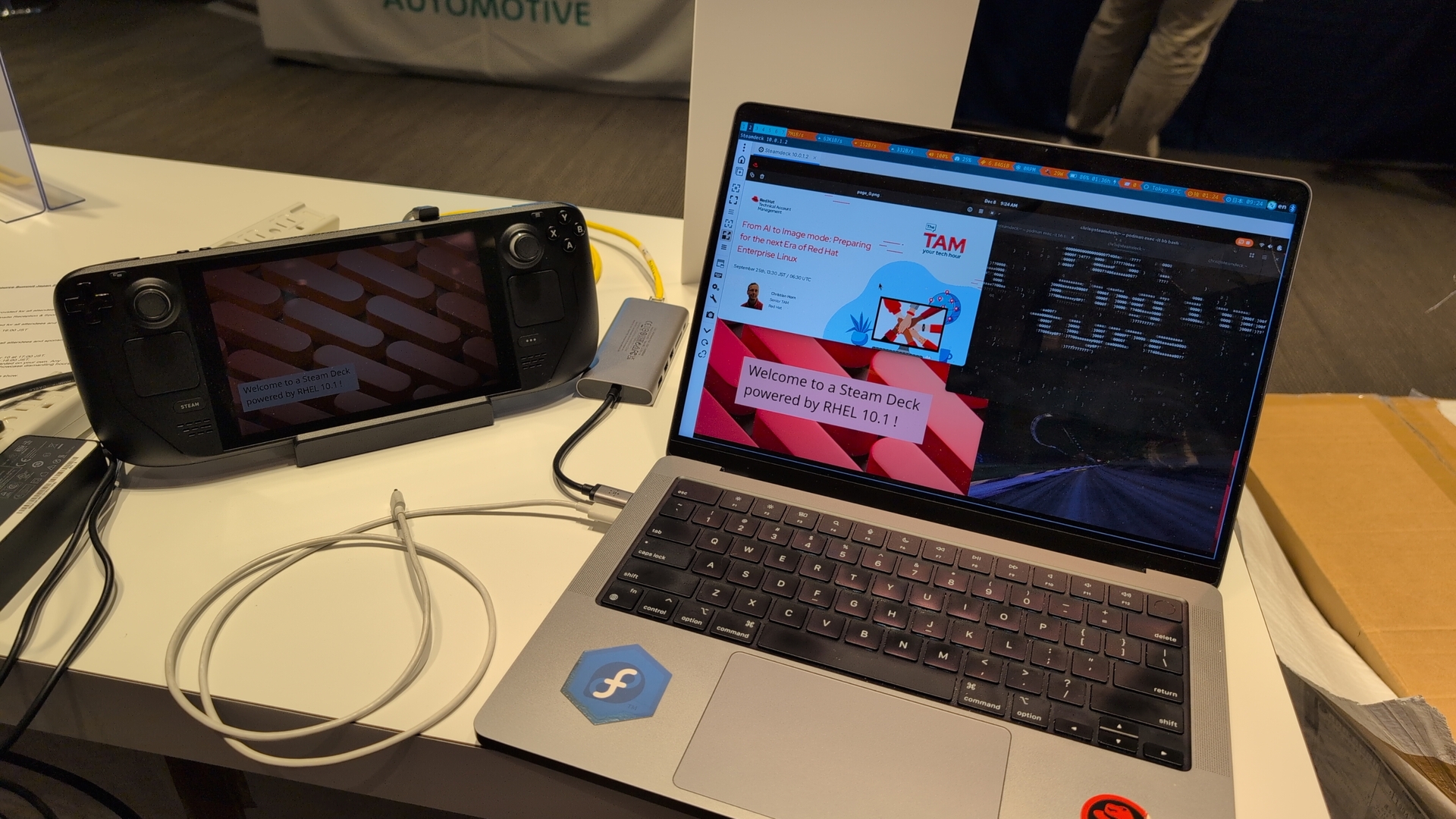
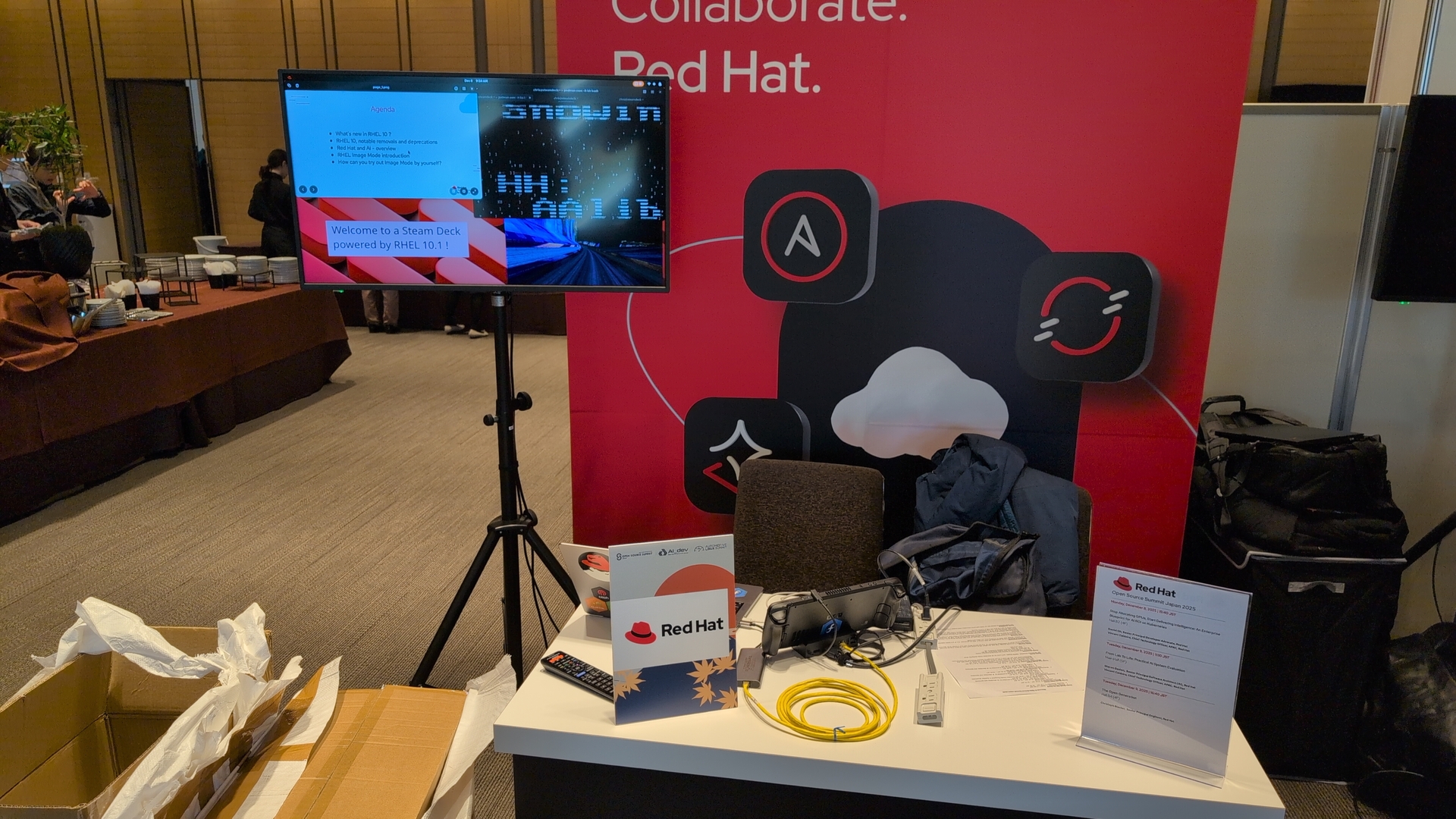
I had tried all of this already when preparing at the office, and it worked flawlessly at the conference. Great to see RHEL running so nicely also for desktop use on this not-quite-enterprise use case!
Corrections? Questions? -> Fediverse thread